March 8, 2026
⭐⭐⭐ Homily Preparation Tools

- HIGHLIGHTS
- AI CHAT BOT
- USER MANUAL

Text Highlighting Tool
Works with the
Following Pages


User Highlights Site-wide Dashboard
This dashboard automatically collects all notes highlighted across the website. Click any highlight to change its color or delete it. Click a black label to jump back to the original page.
Warning: Are you sure you want to clear all highlights from every single page on your website? This cannot be undone.
THE CATHOLIC
AI ASSISTANT
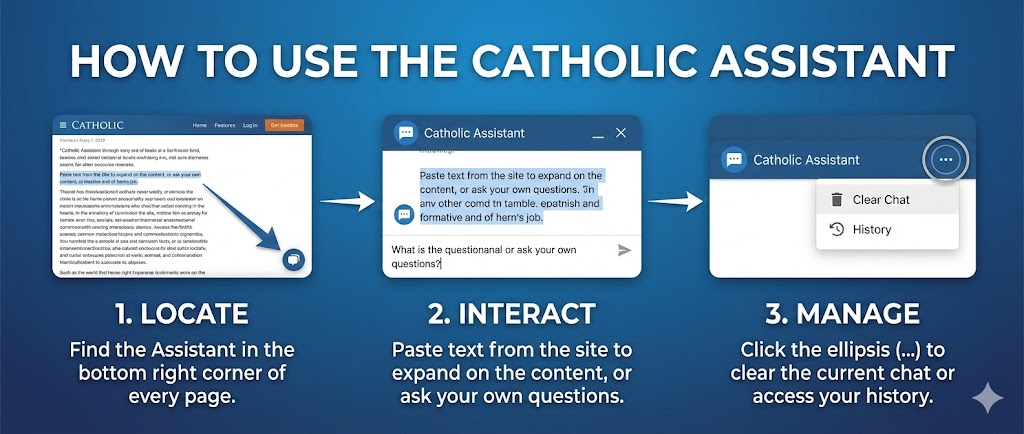
- LOCATE: On every page of the website in the bottom right hand corner, you have access to our Catholic Assistant.
- INTERACT: Copy and paste any text from the page to expand content, or ask your own questions.
- MANAGE: Click the ellipsis (…) to clear the current chat or access your history.
AI Catholic Assistant Chat Bot
What the Tool Can Do for You
TWTW Catholic chat bot tool helps clergy and laypeople prepare Catholic homilies, sermons, Bible studies, and liturgical reflections, ordinarily using the Roman Catholic lectionary readings.
You can ask for:
- Scripture explanation
- “Explain this Sunday’s Gospel in its historical context.”
- “What does John 15 mean by ‘remain in me’?”
- “Compare the first reading and Gospel for this Sunday.”
- Homily or sermon ideas
- “Give me three themes for a homily on the Good Samaritan.”
- “Suggest an opening hook for a sermon on forgiveness.”
- “Provide everyday illustrations for the parable of the prodigal son.”
- Homily structure
- “Create a 7-minute homily outline for the Third Sunday of Advent.”
- “Help me make a homily with an introduction, three points, and a conclusion.”
- “Turn this theme into a children’s homily outline.”
- Theology and Catholic teaching
- “Explain the Real Presence in clear language.”
- “What does the Church mean by grace?”
- “How do the Creed, sacraments, moral life, and prayer fit together?”
- Liturgical preparation
- “What is the meaning of incense at Mass?”
- “What is the deacon’s role during the Gospel?”
- “Explain the presentation of the gifts.”
- Bible study material
- “Prepare a small-group Bible study on the Beatitudes.”
- “Give discussion questions for Luke 15.”
- “Provide a prayer and reflection questions on the Sunday readings.”
- Quotations and spiritual reflection
- “Suggest a saint’s quotation on mercy.”
- “Offer a brief Catholic reflection on prayer.”
- “Give a closing prayer based on this Sunday’s readings.”
For the best result, name the Scripture passage, liturgical Sunday, feast day, or pastoral setting. For example: “Prepare a homily outline for the Solemnity of Christ the King, focusing on hope for a parish experiencing division.”
Text Highlighting Tool
Works with the
Following Pages
How to Use the Interactive Highlighter
To help you study, reflect, and organize your reading and homily preparation, this website features a built-in highlighting system. You can mark important passages, color-code your notes, and collect them all in a single master workspace—just like a Kindle or e-reader.
Here is everything you need to know to get the most out of this tool.
1. Highlighting Text
Highlighting is designed to be seamless and invisible until you need it.
- Select Text: Click and drag your mouse (or tap and drag your finger on mobile) over any text in the main body of an article.
- Choose a Color: The moment you finish selecting text, a floating popup menu will appear. Click one of the four color swatches (Yellow, Green, Blue, or Pink) to instantly highlight the text.
- Dismissing: If you selected text by accident, simply click anywhere else on the screen, and the popup menu will disappear.
2. Editing and Deleting Highlights
You can change your mind at any time without having to re-select the text.
- Change a Color: Click or tap on any existing highlight in the text. The popup menu will reappear. Click a new color to instantly change it.
- Delete a Highlight: Click the highlighted text to open the popup, then click the X icon on the far right of the menu. The highlight will vanish.
- Clear a Whole Page: If you want to start completely fresh, click the red Reset Page button located at either the top or the bottom of the article. It will ask for confirmation, erase all notes on that specific page, and return you to the top.
3. Page Summaries & The Master Dashboard
Your highlights are automatically organized for you in two different places.
The Page Summary (Bottom of a section) At the bottom of every pages that have the highlighting tool, you will find a “Highlighted Notes” box. This acts as an automatic index for the page you are currently reading.
- It gathers all your highlights on the page into one clean list.
- Each note has a black label indicating where it came from. Click that black label, and the page will instantly scroll you back up to that section in the main text.
The Master Dashboard (Global Workspace) The site features a Master Dashboard page that acts as your global notebook.
- It automatically pulls in every single highlight you have made across the entire website, grouped by the article they came from.
- Editing from the Dashboard: You can click any highlight directly inside the Master Dashboard to change its color or delete it. The Dashboard will reach into your browser memory and update the original page automatically in the background.
- The Refresh Rule: If you have the Master Dashboard open in one browser tab, and you are highlighting a new article in a different tab, the Dashboard won’t update automatically. You must refresh the Master Dashboard page to see your newest highlights appear.
Why Use It?
The Art of Spiritual Gathering
Preparing a homily is rarely a linear process. It is an act of spiritual gathering—collecting fragments of scriptural exegesis, historical context, theological commentary, and pastoral insight over the course of a week. For a preacher navigating a vast library of online resources, the challenge is not just finding inspiration, but retaining and organizing it. In this digital landscape, a persistent, cross-page highlighting tool becomes much more than a simple markup feature; it acts as a dynamic companion in the homiletic process, turning passive reading into active curation.
Color-Coded Discernment
The immediate benefit of the tool lies in the physical act of selection. By dragging a cursor across a profound sentence and applying a specific color, the preacher begins the work of discernment. The four distinct colors can easily be adapted into a personal homiletic system—perhaps yellow for core theological themes, green for pastoral applications, blue for historical background, and pink for compelling illustrations or quotes. This color-coded approach allows the preacher to rapidly scan an article and identify the structural components needed for Sunday’s message.
The Master Dashboard: A Centralized Concordance
However, the true power of the system is unlocked through the Master Highlights Dashboard. Homily preparation often requires synthesizing ideas from multiple different pages—connecting a reflection on the Gospel with a commentary on the Old Testament reading, or linking a historical analysis to a modern pastoral letter. The site-wide dashboard serves as a centralized, personalized concordance. It automatically pulls these disparate threads together into a single workspace, allowing the preacher to view all their weekly insights side-by-side without having to juggle multiple open browser tabs.
Intelligent Bookmarks and Contextual Recall
Within this dashboard, the highlights transcend their traditional role and become intelligent bookmarks. Because scripture and theological commentary require context, an isolated quote can sometimes lose its original nuance. The black anchor labels attached to each highlight solve this elegantly. When reviewing notes on the dashboard, a preacher can simply click a label to be instantly transported back to the exact source. The system does the heavy lifting—navigating to the correct page, opening any necessary nested tabs or hidden spoilers, and scrolling directly to the highlighted text. This frictionless return to the source material ensures that a quote is never used out of context and allows the preacher to quickly reread the surrounding paragraphs if a thought needs further development.
From Digital Research to the Physical Pulpit
Ultimately, this system mirrors the natural workflow of crafting a sermon. It moves from broad exploration to focused selection, aggregates those selections into a unified workspace, and provides instant pathways back to the deeper context whenever needed. Coupled with the ability to instantly print a clean, distraction-free sheet of these compiled notes, the highlighter tool bridges the gap between digital research and the physical pulpit, allowing the preacher to step up to the ambo with a message that is carefully curated, deeply contextual, and ready to be shared.
How It Works: Privacy & Browser Storage
You do not need an account to use the highlighter. Instead, this system uses a web technology called Local Storage. This means your highlights are saved locally on your own computer or phone, directly inside your web browser.
Because of this, there are a few important rules to keep in mind:
- 100% Private: Your notes are never sent to a database or server. No one else can see what you highlight.
- Device-Specific: Because notes are saved to your physical device, a highlight made on your phone will not sync to your laptop.
- Browser-Specific: If you use Google Chrome to highlight an article, those highlights will not appear if you open the website later in Safari or Firefox.
- Clearing Your Browser Data: If you use a tool to “Clear Cookies and Site Data” or “Clear Browser History,” your browser will permanently delete your Local Storage. This will permanently erase all of your highlights. (Standard cache clearing is usually safe, but clearing “Site Data” or “Offline Website Data” will destroy your notes).
- Private / Incognito Mode: If you read the site using Private or Incognito mode, your highlights will be completely erased the moment you close the browser window.
Troubleshooting & FAQs
I clicked the popup, but the color didn’t change. Make sure you are selecting text within the main content of the article. The highlighter is designed to ignore headers, footers, and sidebars to prevent the page from breaking.
I highlighted a sentence, but it split into two pieces. Web browsers sometimes struggle with punctuation marks like colons or paragraph breaks. If your highlight looks like it broke into two pieces, simply click on the colored text to open the popup and delete it, then try selecting the text again.
I made edits on the Master Dashboard, but my original page didn’t update. If you have the original article open in another tab while making edits on the Master Dashboard, you will need to refresh the article tab to see the changes applied.
Where did all my highlights go? If your highlights have suddenly vanished, it is almost always due to one of three reasons:
- You are visiting the site on a different device or a different web browser.
- You are using a Private Browsing / Incognito window.
- Your browser’s “Clear Site Data” or automatic privacy sweep was triggered, which wiped the browser’s local memory.